Many website owners blame slow speeds on their hosting plan. However, the core issue is often unoptimized website elements, not server resources. You can dramatically cut loading times without upgrading your plan. This process involves identifying common speed killers and applying strategic fixes. The result is faster performance, better user experience, and higher conversions. You can often achieve improvements of 50% or more. This guide outlines four zero-cost pillars of optimization. Consequently, you can leverage your current hosting plan to its full potential.
Common speed killers include oversized images and lack of caching. Another major factor is inefficient content delivery. Your server may have ample CPU and RAM, but these compounding issues create bottlenecks. For instance, visitors download massive images from a distant server without caching. This scenario strains bandwidth and slows everything down. Therefore, the solution is optimization, not an expensive upgrade. The following four pillars provide a complete framework for tackling these problems systematically.
Pillar 1: Activate Multiple Types of Caching
Caching is like meal prepping for your server. It saves pre-built versions of webpages. This process drastically reduces server workload. You can decrease loading times by up to 70% with proper caching. Implement two primary types: browser caching and server-side caching. Browser caching stores files on your visitor’s local computer. It tells their browser to download certain files locally for repeat visits. Configuration is simple and often permanent.
For WordPress sites, use a plugin like WP Rocket or W3 Total Cache. For a CDN like Cloudflare, activate browser caching in the dashboard. On non-WordPress sites, add code to your server configuration. Use the .htaccess file for Apache servers or the server config file for Nginx. Server-side caching complements this by having the server save pre-built HTML. This is especially useful for dynamic pages. Contact your host to activate it or use a WordPress plugin. Together, these methods optimize both ends of the data stream.
Pillar 2: Compress and Optimize All Images
Images often make up over 50% of a webpage’s total size. Unoptimized media is a primary cause of slow loading times. The good news is you can compress images without losing visible quality. First, automate compression with a plugin or hosting tool. Choose between lossless or lossy compression based on your quality needs. Second, adopt modern image formats like WebP or AVIF. These formats offer superior compression and are widely supported. Use a tool like ShortPixel to convert existing images automatically.
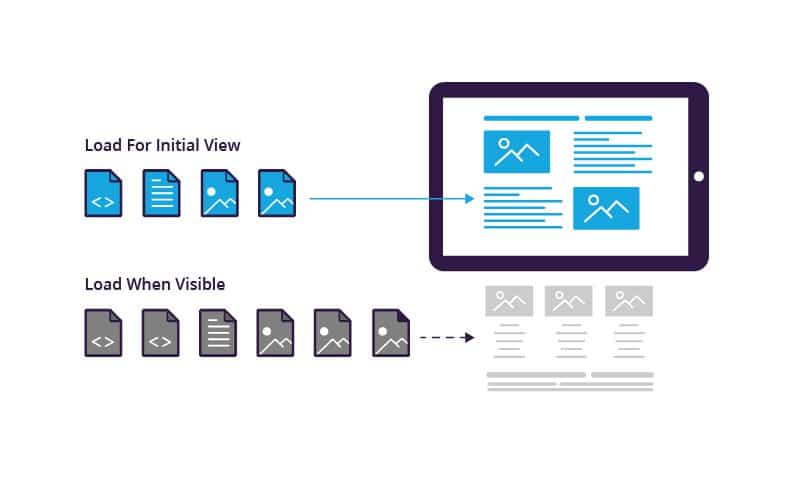
Third, activate lazy loading. This ensures images only load when they enter the visitor’s viewport. WordPress version 5.5 enables this by default. For other platforms, use a plugin or script. This technique prevents unnecessary data transfers. Consequently, your initial page load becomes much faster. My recommended tools include ShortPixel, TinyPNG, and Squoosh.app. These affordable solutions handle bulk optimization with minimal effort.
Pillar 3: Turn on a Free Content Delivery Network
A Content Delivery Network (CDN) stores your website’s static files on a global server network. It delivers content from a server geographically closest to each visitor. This dramatically reduces physical distance data must travel. As a result, loading times improve for international audiences. Many excellent CDNs are free and easy to configure. They work with any hosting plan and require minimal technical skill.
My top recommendations include Cloudflare, Fastly, and Bunny.net. Amazon CloudFront and KeyCDN are also strong options. Simply sign up, update your domain’s nameservers, or configure a CNAME record. The CDN then serves your images, CSS, and JavaScript files. This single change can significantly boost global performance. Therefore, it is a non-negotiable component of speed optimization. A free CDN provides immense value without increasing your monthly hosting bill.
Pillar 4: Clean Out All Code Bloat
Excess and unoptimized code severely impacts performance. Cluttered HTML, JavaScript, and CSS files increase page size and requests. To solve this, first minify your CSS and JavaScript files. Minification removes unnecessary characters, spaces, and line breaks. Tools like WP Rocket or Minifier.org automate this process. Second, remove unused plugins and scripts. Each extra script adds an HTTP request and potential render-blocking delay.
Third, address render-blocking resources. These are CSS or JavaScript files that must load before the page renders. Solutions include inlining critical CSS and deferring non-essential JavaScript. Finally, minimize total HTTP requests. Combine CSS files, use SVG icons, and implement CSS sprites. Fewer requests mean faster loading times. While some techniques require technical knowledge, plugins like WP Rocket handle most tasks automatically. A clean codebase is essential for sustained speed.
When to Actually Upgrade Your Hosting Plan
Optimization solves most speed issues, but sometimes an upgrade is necessary. Key signs indicate genuine server resource exhaustion. First, monitor your server’s RAM and CPU usage. Consistent usage near 100% suggests a need for more power. Second, watch for database bottlenecks. Slow queries or timeouts, especially with a large database, signal a problem. Third, frequent downtime during traffic surges is a clear red flag.
If upgrading, seek specific features. Choose a plan with dedicated CPU cores and SSD storage. Ensure it offers at least 2GB of RAM. Verify support for the latest PHP version. Built-in CDN and caching options are also valuable. An upgrade should be a last resort after exhaustive optimization. Use metrics, not feelings, to make this decision. Tools like GTmetrix and server dashboards provide the necessary data.
Measuring Your Optimization Results
Always measure performance before and after optimization. Use free tools like GTmetrix, Pingdom Tools, and Google PageSpeed Insights. Track key metrics such as Total Page Size, First Contentful Paint, and Time to First Byte. Compare your server’s CPU and RAM usage before and after changes. This data-driven approach proves the value of your efforts. Significant improvement in loading times validates the optimization strategy.
The case study of Marie, the eCommerce owner, illustrates this perfectly. Her site had nine-second loading times. Instead of upgrading her $20/month VPS, we applied these pillars. We activated caching, optimized images, and implemented a CDN. Consequently, her loading times improved by 75%. She saved money and boosted conversions. This outcome is typical for well-optimized sites. Your hosting plan often has unused potential. Strategic optimization unlocks it, delivering faster speeds without higher costs.